Quick Answer
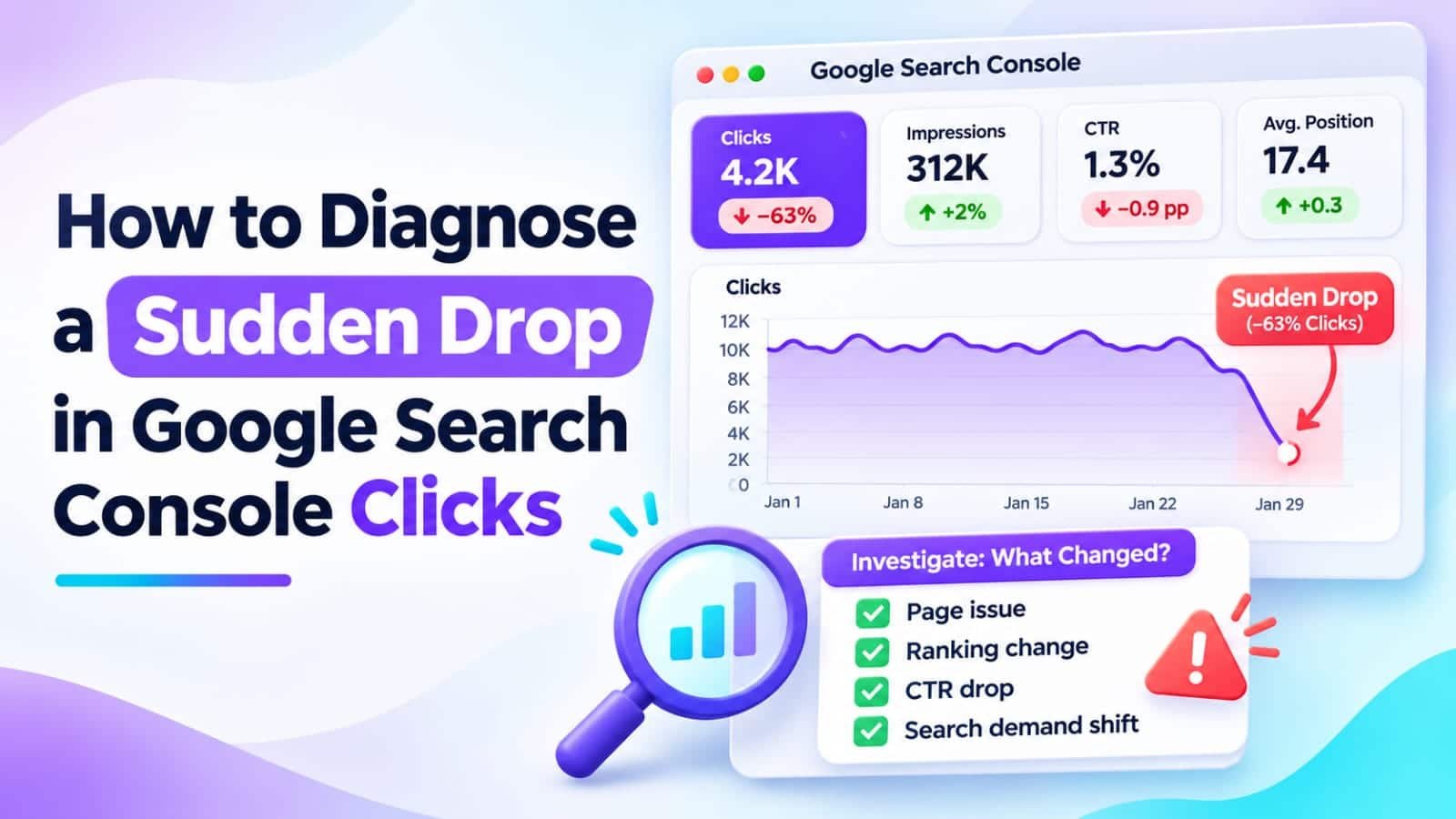
If Google Search Console clicks suddenly drop, first confirm that the decline is real by checking complete dates, reporting filters, and possible data anomalies. Next, compare equivalent periods and identify the affected pages, queries, devices, and countries. Investigate indexing, ranking changes, site updates, and search demand before rewriting content or assuming a Google penalty.
In This Guide
- Quick Verdict
- Confirm the Drop Before Troubleshooting
- Eight Checks to Identify the Cause
- Interpret the Pattern in Your Data
- Real Case Study
- A 60-Minute Diagnostic Workflow
- What to Fix and What to Leave Alone
- Common Mistakes to Avoid
- Frequently Asked Questions
- Final Verdict
- Recommended Next Reads
Quick Verdict
Identify where the lost clicks came from and what changed immediately beforehand.
| Search Console pattern | First explanation to investigate | Best next step |
|---|---|---|
| Clicks and impressions collapse across many pages | Technical access, indexing, or broad visibility problem | Inspect indexing and crawl reports |
| Clicks fall, impressions remain similar | CTR or changes near the top rankings | Review query-level positions and live results |
| Only one URL loses clicks | Page-specific ranking, content, or canonical issue | Inspect that exact URL |
| Impressions decline while positions stay similar | Lower search demand or changing query mix | Check seasonality and relevant queries |
| Clicks fall immediately after a site change | Migration, template, redirect, or metadata issue | Compare the change log with the drop date |
I would use: Search Console, Google Trends, a simple change log, and GA4 for cross-checking site sessions.
I would not use: automatic sitewide rewrites, repeated indexing requests, or paid tools before identifying a credible cause.
Distinguish reporting problems from visibility losses before editing.
Confirm the Drop Before Troubleshooting
Open Performance > Search results in Google Search Console. Choose Web search and enable clicks, impressions, average CTR, and average position.
Avoid incomplete recent data. Remove page, query, country, device, and search appearance filters. Confirm the intended property.
Use Date > Compare to compare two complete seven-day periods; expand to 28 days for sparse data. Align weekdays, and examine longer history for seasonality.
A decline from four to one click is 75%, but just three clicks. Consider absolute volume.
Eight Checks to Identify the Cause
1. Check Google’s Reporting and Data Anomalies
Before touching WordPress, check whether Google has reported a Search Console data anomaly. Logging or processing issues can produce unusual charts without representing equivalent changes in real user activity.
Compare the start date with GA4’s Google organic sessions trend. Totals differ by design.
If the newest day looks unusually low, wait for complete data.
2. Find the Pages That Lost the Most Clicks
In the compared Performance report, open Pages and look for the biggest absolute click losses, not simply the largest percentages.
A decline from 150 to 60 clicks matters more than three to zero.
Classify the decline:
- Sitewide: Many unrelated URLs declined together.
- Section-wide: Only product comparisons or tutorials declined.
- Page-specific: One or two previously successful URLs explain most of the loss.
Inspect the affected pages before choosing a fix.
For broadly weak visibility, see Why Your Small WordPress Website Gets Almost No Organic Traffic.
3. Compare Queries, Position, and CTR Together
Filter one affected page, then open Queries. Examine its important relevant searches rather than interpreting the overall average position in isolation.
Three patterns matter:
- Clicks and positions worsen: Investigate ranking changes and competing results.
- Clicks fall while impressions and positions stay similar: Inspect search-result appearance and CTR.
- Impressions fall while positions stay similar: Check declining search demand, seasonality, and query mix.
These are hypotheses. Average position is not a fixed ranking.
For persistent low CTR, read Google Search Console Shows Impressions but No Clicks: What to Fix First.
4. Inspect Indexing and Recent Technical Changes
If a page or group of URLs lost visibility, use URL Inspection on representative affected pages. Review the indexed status, Google-selected canonical, and live access when appropriate.
For sitewide problems, check Indexing > Pages and Settings > Crawl stats for error spikes.
Review recent changes to:
- WordPress search engine visibility and SEO plugin settings.
noindexdirectives and robots.txt rules.- Canonical tags and redirect rules.
- Permalinks, site migrations, and domain configuration.
- Themes or templates that change visible content or structured data.
Fix confirmed technical errors first. Their effects can lag as Google recrawls.
5. Check Manual Actions and Security Issues
In Search Console, inspect the Manual actions and Security issues reports.
Manual actions are notified, not inferred from charts. Security warnings can deter visitors.
Resolve any reported issue. Otherwise, do not claim a confirmed penalty.
6. Compare the Timing With Google Ranking Updates
Review the Google Search Status Dashboard for announced ranking updates and compare their timelines with your traffic graph.
Timing alone does not prove causation. Examine affected queries and positions.
If a core update is rolling out, Google recommends waiting at least one full week after completion before detailed analysis.
7. Test for Seasonality and Lower Search Demand
Lower impressions can reflect reduced demand.
Look at the same period in previous years where data is available. Use Google Trends to check whether interest in important topics has fallen more broadly.
Older product-version tutorials and seasonal topics may naturally lose demand.
Avoid rewriting healthy pages to fight normal seasonality.
8. Review Search Appearance, Competition, and Site Changes
Check current search results for affected queries. Snippets and search features influence clicks.
Check whether you recently removed helpful content, altered title tags, changed breadcrumbs, or introduced a new page template. Check mobile results as well as desktop results when the loss is device-specific.
If rankings remain fairly strong but clicks decline, inspect snippets and intent before assuming indexing failure.
After technical checks, consult How to Audit SEO Content with AI for deeper content review.
Interpret the Pattern in Your Data
Consider this hypothetical small-site report comparing two equal periods:
| Metric | Before | After |
|---|---|---|
| Clicks | 320 | 185 |
| Impressions | 18,000 | 17,500 |
| Average CTR | 1.78% | 1.06% |
| Average position | 8.9 | 9.1 |
Clicks fell substantially, while impressions and average position moved relatively little. This pattern makes query-level CTR and search-result changes worth investigating first; it does not prove the title is responsible.
If impressions also collapse alongside indexing errors, prioritize technical checks.
Ask which searches and pages account for the loss, not just how large it was.
Real Case Study
SearchPilot published an SEO A/B test on July 25, 2024, involving breadcrumb navigation on an ecommerce website.
The test removed the self-referential link from the final breadcrumb on product listing pages. SearchPilot reported a statistically significant 5.5% decrease in organic traffic, with its Search Console analysis indicating that ranking changes contributed to the decline.
The visible breadcrumb no longer matched its structured data, a plausible explanation rather than a proven universal cause.
Lesson: After navigation changes, inspect implementation and rankings before rewriting content. This ecommerce result cannot predict WordPress outcomes.
External source: SearchPilot — Will Removing Self-Referential Breadcrumb Links Improve Organic Traffic?
A 60-Minute Diagnostic Workflow
| Time | Task | Deliverable |
|---|---|---|
| Minutes 0–10 | Confirm property, complete dates, filters, anomalies | Reliable baseline |
| Minutes 10–20 | Compare periods and sort affected Pages | Lost-click shortlist |
| Minutes 20–30 | Inspect important Queries and segments | Leading hypotheses |
| Minutes 30–40 | Check indexing, crawl reports, changes | Technical findings |
| Minutes 40–50 | Review updates, demand, and live results | External context |
| Minutes 50–60 | Document evidence and decide the next action | One prioritized fix |
Record each affected URL, query, key metrics, recent changes, and next action. The hour is for diagnosis, not recovery.
What to Fix and What to Leave Alone
Fix a confirmed noindex error, broken redirect, inaccessible page, or incorrect canonical promptly. If a useful article genuinely became outdated, update the missing information and maintain its existing URL when possible.
For seasonal demand or small ranking fluctuations, monitoring may be better than editing.
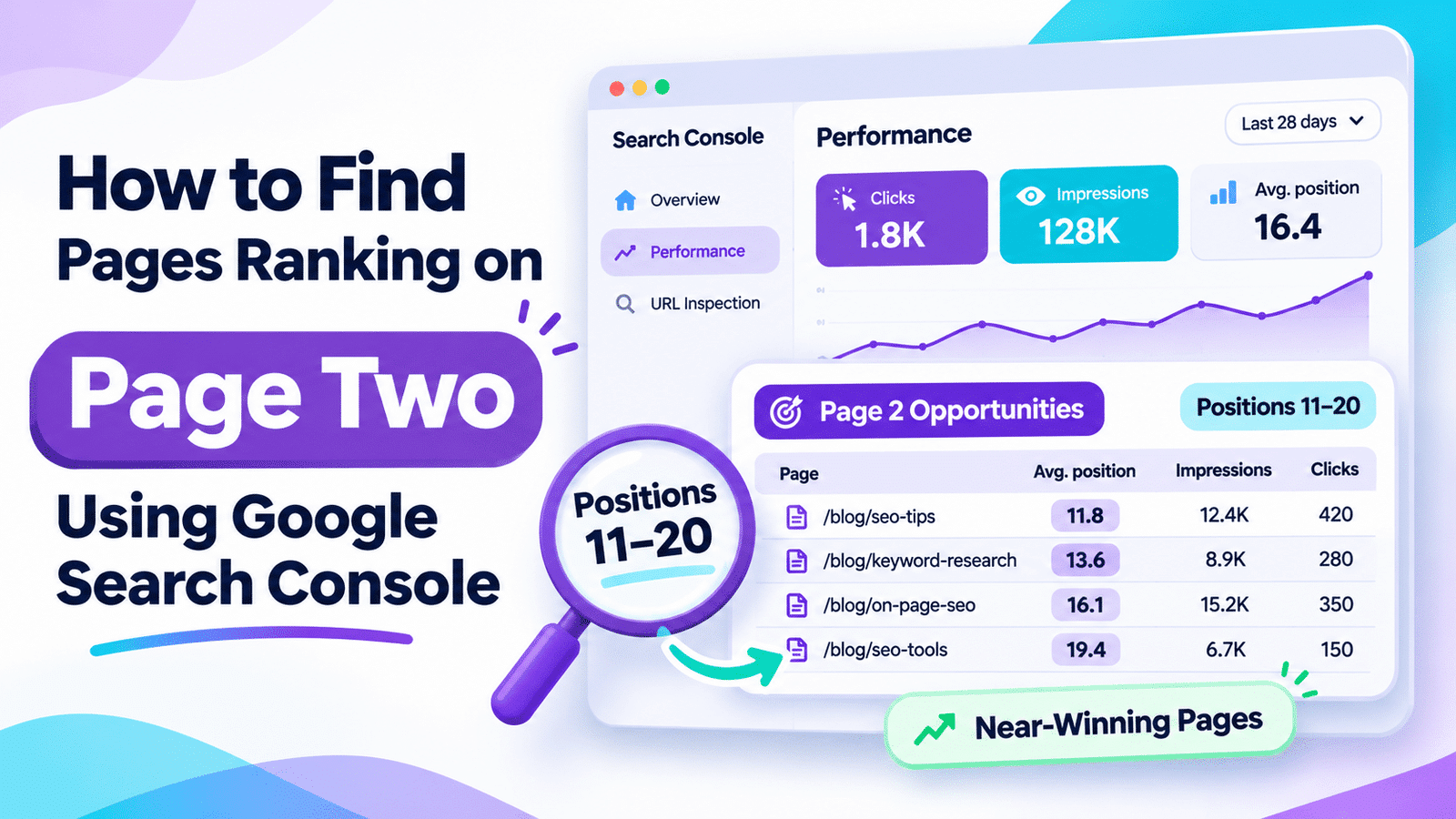
After editing, compare equivalent periods without assuming causation. For rankings around 11–20, see our page two rankings guide.
Common Mistakes to Avoid
- Reacting to an incomplete reporting day: Confirm the data is ready.
- Comparing unequal date ranges: Align weekdays and account for seasonality.
- Confusing GA4 sessions with Search Console clicks: Their counting systems differ.
- Assuming every decline is an algorithm penalty: Verify actual reports and evidence.
- Changing titles across the entire site: Start with affected page-query combinations.
- Ignoring recent technical edits: A theme, canonical, or redirect change can matter.
- Judging a three-click loss by its percentage: Consider absolute impact.
Frequently Asked Questions
Why did Google Search Console clicks suddenly drop?
Possible causes include ranking changes, reduced search demand, indexing problems, technical edits, security issues, or weaker CTR. Compare equivalent periods and identify the affected pages and queries before choosing a fix.
Can a Google core update cause a sudden traffic drop?
Yes, ranking updates can affect visibility. Check the Search Status Dashboard and the rollout timeline, but do not treat a date match as proof. Review the specific ranking changes and allow sufficient time to evaluate the impact.
What if impressions stay stable but clicks drop?
Inspect query-level CTR, positions, and current results. Other listings or search features may attract clicks, and changes in titles or snippets may matter. A stable sitewide average can still conceal shifts in important queries.
What if clicks drop but GA4 traffic looks normal?
Check the property, dates, traffic source, and measurement definitions. GA4 sessions and Search Console clicks are not identical. Also investigate a possible Search Console reporting anomaly rather than immediately modifying the site.
Should I request indexing for every affected page?
No. First inspect the actual indexing status and fix any verified restriction. Repeated indexing requests for unchanged, already indexed URLs do not guarantee rankings or recovered clicks.
How long does traffic recovery take?
There is no guaranteed timeline. A technical correction may be processed relatively quickly, while ranking and demand-related changes can take longer or may not reverse. Monitor comparable periods and avoid promising a specific recovery date.
Final Verdict
When Search Console clicks suddenly fall, identify the scope and pattern before making changes. Verify the report, isolate lost-click pages and queries, then test the most plausible explanations: technical problems, rankings, demand, search appearance, or a recent site change.
Your next action: Compare two complete seven-day periods, find the three URLs with the largest absolute click losses, and investigate their relevant queries. Make the smallest evidence-based correction, record it, and monitor the result.

Comments 4