Quick Answer
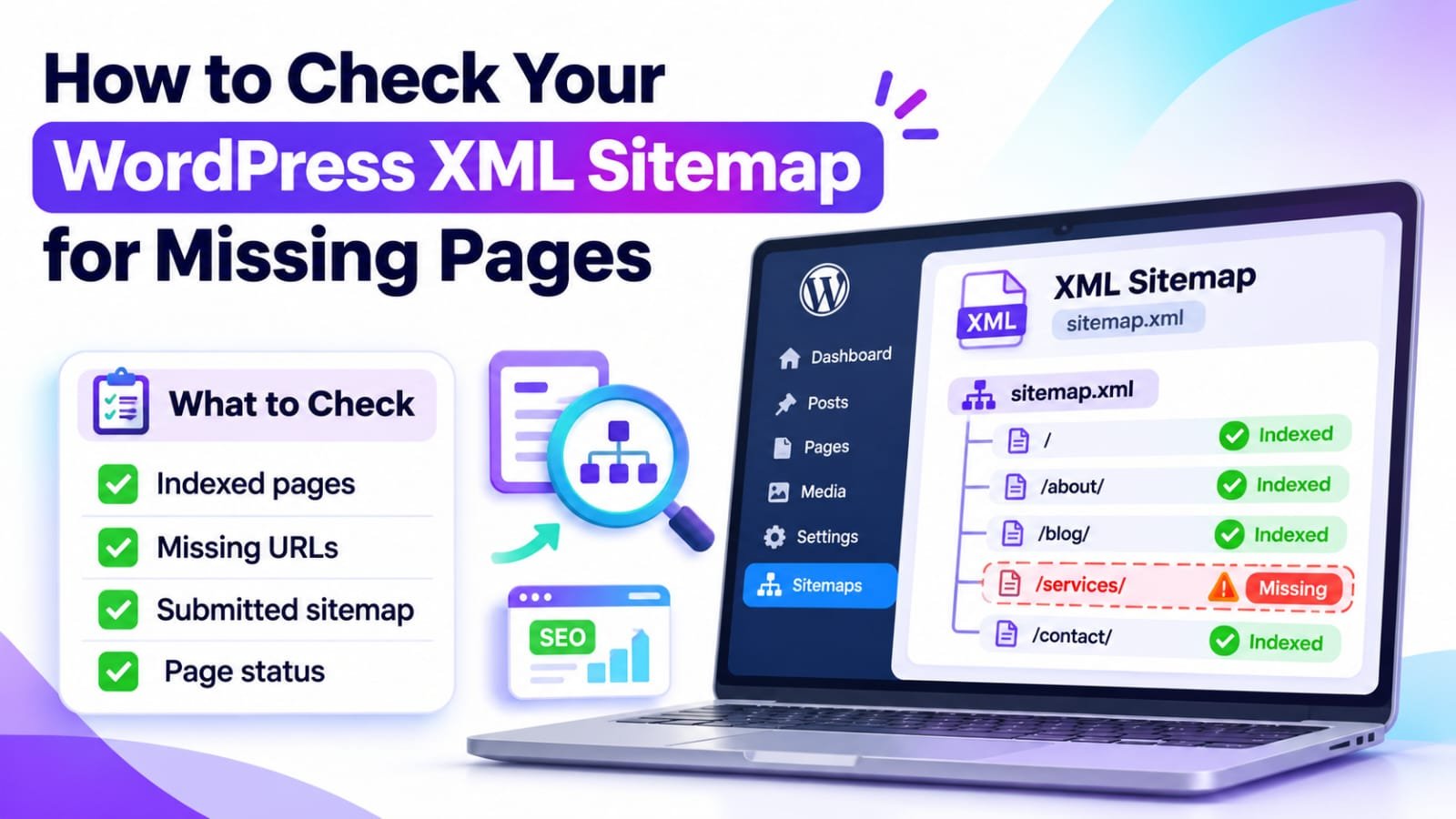
To check a WordPress XML sitemap for missing pages, open your sitemap index, review the post and page sitemaps, and compare their URLs with your published WordPress content. Investigate missing entries for noindex settings, noncanonical URLs, excluded post types, and stale caching. Then verify important URLs and the submitted sitemap in Google Search Console. A missing sitemap entry does not automatically mean a page is missing from Google.
In This Guide
- Quick Verdict
- What a WordPress XML Sitemap Does
- Find the Sitemap Your Website Actually Uses
- Compare Published Pages With Sitemap URLs
- Seven Reasons Pages Go Missing
- Verify the Sitemap in Google Search Console
- Real Case Study
- A 60-Minute Sitemap Audit
- Common Mistakes to Avoid
- Frequently Asked Questions
- Final Verdict
- Recommended Next Reads
Quick Verdict
For a small WordPress site, the most reliable approach is to compare two lists: pages that should be discoverable in search and pages actually included in your XML sitemap. Do not judge sitemap quality by its URL count alone.
| What you find | Likely explanation | First check |
|---|---|---|
| Published article missing | Individual noindex or exclusion | Post SEO settings |
| Every post missing | Post-type sitemap disabled | Rank Math Sitemap Settings |
| Old URL appears instead | Canonical or redirect mismatch | Preferred URL and redirects |
| Newly published content absent | Sitemap cache has not updated | Cache and live sitemap |
| Sitemap works in browser but Search Console reports errors | Fetch or parsing issue | Sitemaps report details |
I would use: WordPress’s published-post inventory, Rank Math’s free settings, a spreadsheet, and Search Console.
I would not use: paid indexing services, mass noindex changes, or repeated sitemap submissions without fixing the underlying problem.
What a WordPress XML Sitemap Does
An XML sitemap lists URLs you want search engines to know about. It supports discovery, especially when important content is new or difficult to reach through ordinary links. It does not guarantee crawling, indexing, a particular ranking, or organic traffic.
WordPress has supported a built-in sitemap index since version 5.5. An SEO plugin can provide its own sitemap system and may replace or disable the core output.
If your pages are already indexed but have no impressions, the issue may be relevance rather than discovery. See Google Indexed Your Page but It Gets No Search Impressions: What to Check for that separate diagnosis.
Find the Sitemap Your Website Actually Uses
Check the Likely Sitemap Addresses
Open your homepage address with each common path:
/wp-sitemap.xmlfor WordPress core’s sitemap index./sitemap_index.xmlfor the typical Rank Math sitemap index.
A sitemap index often links to separate files for posts, pages, categories, or other public types. Open the post and page files rather than assuming the index itself lists individual articles.
Identify the Active Generator
If Rank Math manages your sitemaps, inspect Rank Math SEO > Dashboard to confirm the Sitemap module is enabled, then open Sitemap Settings. Depending on your interface mode, some advanced options may be hidden.
Compare Published Pages With Sitemap URLs
Step 1: Make a Published-URL Inventory
In WordPress, open Posts > All Posts and filter to published posts. Include every results page, not just the first dashboard screen. Repeat for important Pages and relevant public custom post types.
Step 2: Collect the Sitemap URLs
Open the relevant post and page sitemap files. Copy their <loc> URLs or export them with a suitable XML reader or free crawler. For a small website, a manual list is manageable.
Step 3: Flag Missing Entries in Google Sheets
Create two tabs called Published and Sitemap. Put published page URLs in column A of the first tab and actual sitemap URLs in column A of the second. In Published!B2, enter:
=IF(COUNTIF(Sitemap!$A:$A,A2)=0,"Review: missing","Found")
| Published page | In sitemap? | Next action |
|---|---|---|
| /wordpress-checklist/ | Found | No action |
| /xml-sitemap-troubleshooting/ | Missing | Review settings |
| /private-download/ | Missing | Confirm intentional exclusion |
Illustrative URLs, not data from a real audit.
A flagged row is a candidate for investigation, not an automatic error. Variations such as http versus https or missing trailing slashes can create false mismatches.
For a broader review of page inventories and technical issues, read How to Audit SEO Content with AI.
Seven Reasons Pages Go Missing
1. The Post Is Set to Noindex
Open the missing post in WordPress and inspect its Rank Math Advanced settings. If the robots setting is No Index, Rank Math normally excludes the URL from its sitemap.
Before changing it, confirm that the page is genuinely intended for public search. A private utility page or intentionally excluded duplicate may be correct as-is. If a useful public tutorial was excluded accidentally, update the setting and save the post.
2. A Custom Canonical Points Elsewhere
A canonical URL tells Google which version is preferred among duplicates or near-duplicates. Rank Math may omit a page with a custom canonical pointing to another URL.
Check whether the canonical represents a deliberate consolidation. If so, the omission may be expected. If it was copied accidentally from another post, correct it only after confirming the intended primary URL.
3. The Post Type Is Disabled in Sitemap Settings
Go to Rank Math SEO > Sitemap Settings > Posts or Pages. Check Include in Sitemap for the content type you want listed.
4. The URL Was Explicitly Excluded
In Rank Math’s advanced sitemap settings, review any Exclude Posts entries. Those entries use WordPress numeric post IDs, not URL slugs. A single forgotten ID can exclude an otherwise healthy public page.
5. A Cache Serves an Old Sitemap
Check the sitemap as a logged-out visitor, then review your cache configuration. Follow Rank Math’s guidance for excluding its generated sitemaps from caching and purge the relevant cache once. Avoid repeatedly clearing your entire site for an unrelated issue.
6. The URL Redirects, Is Unpublished, or Is Not the Preferred Version
A post still visible in an old spreadsheet may now be a draft, redirected URL, or alternate version. The canonical destination may be the one that belongs in the sitemap.
7. The Sitemap Generator or Server Has a Problem
Rank Math documents a permalink refresh as one potential fix for a sitemap-related 404. Complex caching, rewrite-rule, or XML errors may require help from your hosting provider. Back up site settings before changing server configuration.
If your wider site has indexing and traffic problems as well, Why Your Small WordPress Website Gets Almost No Organic Traffic provides a broader troubleshooting workflow.
Verify the Sitemap in Google Search Console
In Search Console, select the right property and open Indexing > Sitemaps. Check the submitted sitemap address, its latest fetch status, and any reported errors.
Success means Google fetched and read the submitted sitemap. It does not mean all listed pages have been indexed. Couldn’t fetch or parsing errors require investigation of accessibility or file content.
Use URL Inspection for several priority pages. Check indexing status, Google-selected canonical, and any crawl restrictions. The Page indexing report offers broader patterns, but it is not a substitute for inspecting an individual URL.
After correcting a significant sitemap error, you may resubmit the sitemap. For a healthy sitemap that updates normally, let Google recrawl it on its regular schedule. Google does not promise to index every submitted page.
A sitemap is also not a replacement for useful navigation. Check that important articles receive ordinary, crawlable internal links. For techniques beyond the sitemap, see Best AI Tools for Internal Linking.
Real Case Study
In October 2026, WPPoland published a firsthand report on sitemap-generation problems found on its own multilingual website. One faulty filtering rule removed 500 live, indexable pages from its sitemaps, even though the entries that remained were technically valid. The team corrected the rule and reported that the corrected build restored those 500 URLs.
In a separate issue, Google had not refreshed some location sitemaps for five days. After they were fetched again, the number of city pages receiving impressions increased from 223 to 343 during the following week. The authors cautioned that this represented improved discovery, not substantial traffic: those pages generated only two clicks in that week.
This was an Astro-based site with thousands of URLs, not a small WordPress installation. It was also a production case study, not a controlled test proving that sitemap changes caused every observed change.
External source: WPPoland — XML sitemap: five mistakes we found in our own
A 60-Minute Sitemap Audit
| Time | Task | Deliverable |
|---|---|---|
| 0–10 minutes | Find the active sitemap and open child files | Sitemap URLs |
| 10–20 minutes | List published posts and pages | Expected-URL inventory |
| 20–30 minutes | Compare both lists | Candidate missing URLs |
| 30–45 minutes | Inspect Rank Math settings and public page status | Confirmed causes |
| 45–55 minutes | Check Search Console and internal links | Discovery and indexing evidence |
| 55–60 minutes | Record fixes, owners, and dates | Prioritized action list |
Common Mistakes to Avoid
- Expecting every WordPress URL in the sitemap. Only appropriate public, preferred pages should normally appear.
- Equating sitemap inclusion with indexing. Google makes indexing decisions separately.
- Ignoring child sitemap files. The index often lists files rather than individual pages.
- Assuming a missing URL proves a penalty. Check settings and URL variations first.
- Changing noindex and canonical settings blindly. Some exclusions are intentional.
- Resubmitting unchanged sitemaps repeatedly. Resolve the cause instead.
- Using only a sitemap validator. A well-formed file can omit important pages.
Frequently Asked Questions
Why are some WordPress pages missing from my XML sitemap?
Common reasons include noindex settings, custom canonicals, disabled post-type inclusion, explicit exclusions, redirects, and outdated caches. Compare the published-URL inventory with the actual sitemap before changing settings.
Where is the WordPress XML sitemap located?
WordPress core commonly uses /wp-sitemap.xml. Rank Math commonly uses /sitemap_index.xml. Custom configurations can differ, so check the active generator and its settings.
Does a missing sitemap page mean Google has not indexed it?
No. Google may discover and index a page through internal or external links. Use URL Inspection to check indexing rather than assuming the sitemap contains the complete Google index.
How do I add a missing post to the Rank Math sitemap?
First ensure the post is published, intended for indexing, using the correct canonical, and included by its post-type settings. Check explicit exclusions and caching. Rank Math normally generates the sitemap automatically after valid settings are saved.
Should I submit my sitemap again after every new post?
Usually not. A healthy sitemap is rediscovered periodically. Resubmission is more useful after fixing a fetch failure or making significant changes to the sitemap itself.
Can an XML sitemap improve my Google rankings?
A sitemap helps discovery but is not a direct guarantee of ranking gains. Search relevance, content usefulness, crawlability, and many other factors still matter.
Final Verdict
A WordPress XML sitemap should accurately list the public, canonical pages you want Google to discover. The most important test is not whether the file opens or how many URLs it contains; it is whether the right URLs are included.
Your next action: Pick five important published URLs, check each against your active sitemap, and investigate any missing entry before changing global settings.


Comments